
No products in the cart.

How to Set Up a MikroTik Router from Scratch with script
Setting up a MikroTik router for the first time may seem complex, but following these steps will get your network online quickly.
1. Connect to the Router
- Connect your PC to the MikroTik router using an Ethernet cable.
- Download and open WinBox.
- Use Neighbor Discovery to find and connect to the router. [1]
2. Reset to Default (Optional)
- Go to System → Reset Configuration if you want a clean setup.
3. Configure WAN (Internet)
- Connect your ISP cable to ether1.
- If your ISP uses DHCP:
- Go to IP → DHCP Client
- Add DHCP Client on ether1.
4. Configure LAN
- Create or verify a bridge containing LAN ports.
- Assign a LAN IP (e.g., 192.168.88.1/24).
5. Set Up DHCP Server
- Go to IP → DHCP Server
- Click DHCP Setup
- Select the LAN bridge and follow the wizard. [2]
6. Configure DNS
- Go to IP → DNS
- Enable Allow Remote Requests
- Add DNS servers (8.8.8.8 and 1.1.1.1).
7. Configure NAT
- Go to IP → Firewall → NAT
- Add:
- Chain: srcnat
- Out Interface: ether1
- Action: masquerade
8. Secure the Router
- Change the admin password.
- Upgrade RouterOS to the latest stable version.
- Disable unused services.
9. Test Internet
- Connect a device to the LAN or WiFi.
- Verify that websites load successfully.
For businesses, I recommend adding:
- VLANs for network separation
- Firewall rules
- VPN access
- Hotspot or PPPoE services
- Automatic backups
These features make MikroTik ideal for offices, ISPs, hotels, schools, and enterprise networks. [5]
MikroTik L009 Basic Setup
WAN = ether1
LAN = ether2-ether8
LAN IP = 192.168.88.1/24
/system identity set name=”Wavetech-L009″
/interface bridge
add name=bridge-LAN
/interface bridge port
add bridge=bridge-LAN interface=ether2
add bridge=bridge-LAN interface=ether3
add bridge=bridge-LAN interface=ether4
add bridge=bridge-LAN interface=ether5
add bridge=bridge-LAN interface=ether6
add bridge=bridge-LAN interface=ether7
add bridge=bridge-LAN interface=ether8
/ip address
add address=192.168.88.1/24 interface=bridge-LAN
/ip pool
add name=LAN-Pool ranges=192.168.88.10-192.168.88.254
/ip dhcp-server
add name=LAN-DHCP interface=bridge-LAN address-pool=LAN-Pool disabled=no
/ip dhcp-server network
add address=192.168.88.0/24 gateway=192.168.88.1 dns-server=8.8.8.8,1.1.1.1
/ip dhcp-client
add interface=ether1 disabled=no
/ip dns
set allow-remote-requests=yes servers=8.8.8.8,1.1.1.1
/ip firewall nat
add chain=srcnat out-interface=ether1 action=masquerade
/ip firewall filter
add chain=input connection-state=established,related action=accept
add chain=input connection-state=invalid action=drop
add chain=input in-interface=bridge-LAN action=accept
add chain=input in-interface=ether1 action=drop


Related posts

Looking to launch a profitable WiFi hotspot business? With the right equipment and billing platform, you can provide secure and reliable internet access to homes,... Continue reading

Managing employee attendance manually can be time-consuming and prone to errors. At Wavetech Solutions, we help businesses automate attendance tracking by integrating ZKTeco F18 biometric... Continue reading

Did you know that a properly aligned Point-to-Point (PtP) wireless link can deliver fiber-like speeds over several kilometers without laying a single meter of cable?... Continue reading

Did You Know? 💡 Many network installers still think outdoor access points can only be connected using Ethernet cable. However, the Ruijie Reyee RG-RAP6262(G) comes... Continue reading
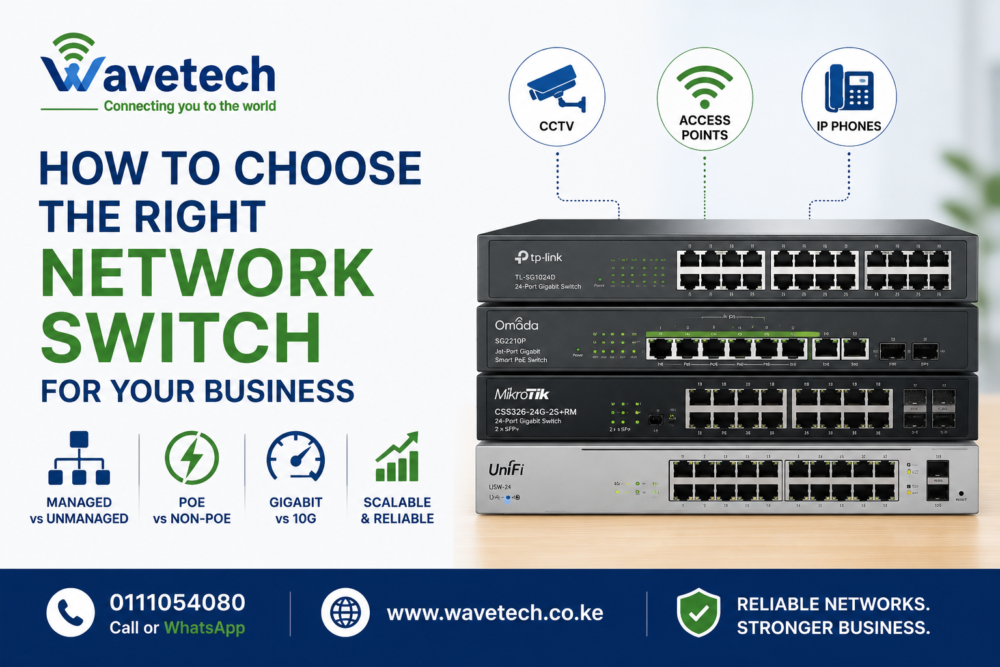
A network switch is the backbone of your business network. Whether you’re connecting computers, CCTV cameras, access points, VoIP phones, or servers, choosing the right... Continue reading

Add comment