
No products in the cart.
Wire-Speed Load Balancing on MikroTik CRS326-24S+2Q+RM: The Right Way
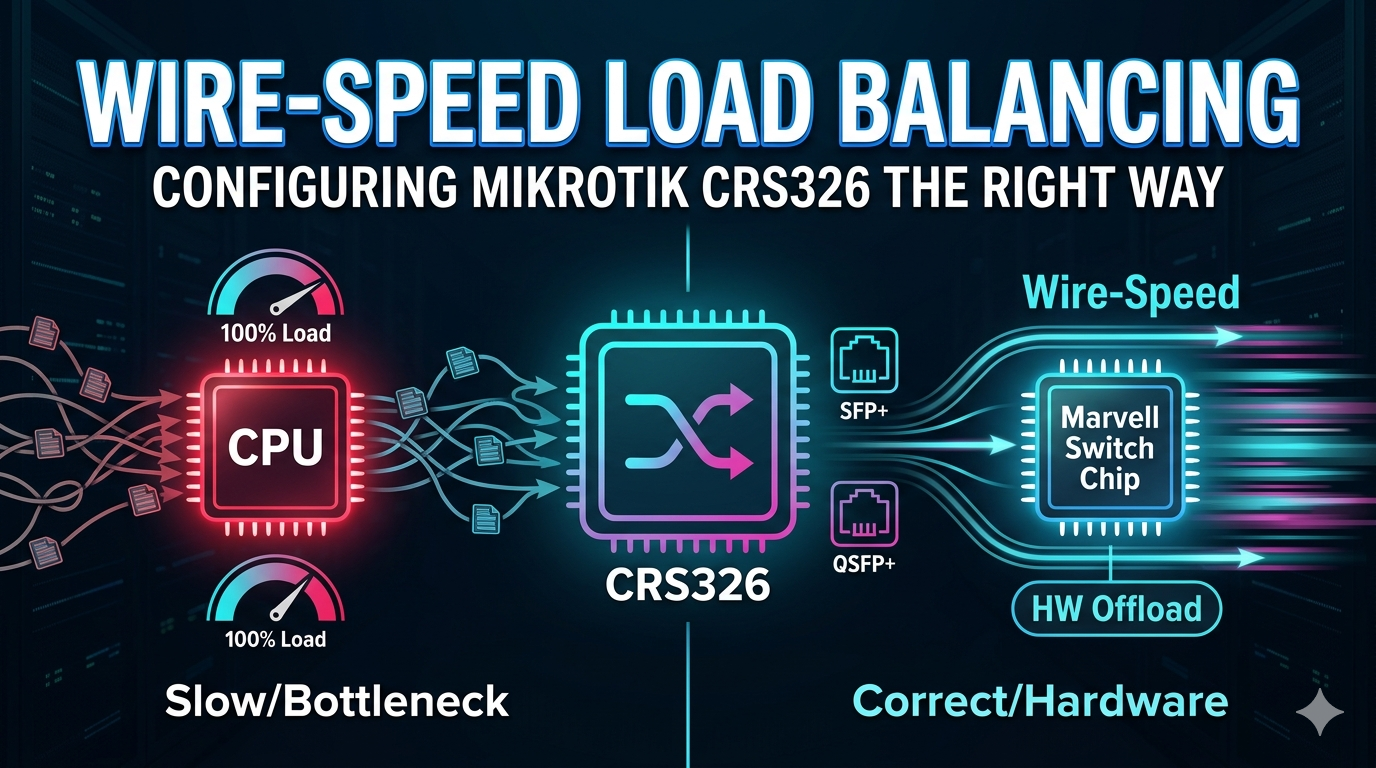
The MikroTik CRS326-24S+2Q+RM is an incredible, cost-effective switch featuring 24 10G SFP+ ports and two 40G QSFP+ ports. However, many network administrators bottleneck this device by configuring load balancing incorrectly.
If you configure this switch incorrectly, your throughput will tank to under 40MB/s. When configured correctly, you will get full wire-speed aggregation.
Here is exactly how to set up hardware-offloaded load balancing on this specific hardware.
The Golden Rule: Layer 2 vs. Layer 3
Before writing any script, you must understand the hardware limitations of this switch:
- Do NOT use this switch for L3 WAN Load Balancing: The CRS326 is powered by a modest 800MHz single-core CPU. If you attempt Layer 3 Multi-WAN load balancing using PCC (Per Connection Classifier) or ECMP (Equal-Cost Multi-Path), the CPU will hit 100% load immediately and choke your network.
- Do use L2 Link Aggregation (LACP): This switch features a powerful Marvell Prestera switching chip. To aggregate links and load balance traffic safely, you must use Hardware-Offloaded (HW Offload) Bonding. This keeps the traffic inside the switch chip silicone, leaving the CPU completely untouched.
Step-by-Step Configuration Guide
This guide walks you through creating a 2-port 10G LACP bundle using RouterOS v7.
Step 1: Create the LACP Bonding Interface
First, group your physical interfaces into a single logical trunk. We will use industry-standard 802.3ad (LACP) and apply a hash policy that distributes traffic evenly based on MAC and IP data.
/interface bonding
add mode=802.3ad name=bonding-trunk slaves=sfp-sfpplus1,sfp-sfpplus2 transmit-hash-policy=layer-2-and-3
mode=802.3ad: Dynamically negotiates the trunk with your connected server or switch.slaves: The physical ports you want to combine (e.g., ports 1 and 2).transmit-hash-policy=layer-2-and-3: The best algorithm for general networks, utilizing both Layer 2 and Layer 3 data to balance traffic across the links.
Step 2: Add the Trunk to the Hardware Bridge
To achieve maximum performance, the bonding trunk must belong to your main bridge with hardware offloading explicitly enabled.
/interface bridge port
add bridge=bridge1 interface=bonding-trunk hw=yes
hw=yes: This single argument instructs RouterOS to hand control of the bonding interface over to the Marvell switch chip. Traffic will now pass at line-rate speed.
Verifying Your Setup
Once applied, verify that the configuration is working correctly and running on the hardware chip. Run this command:
/interface bridge port print where interface=bonding-trunk
What to Look For:
In the output terminal, look at the flags displayed next to your bonding-trunk entry. You must see the H flag.
H= Hardware Offloaded: Success. Your load balancing is running inside the switch chip at full wire speed.- No
Hflag: The traffic is routing through the 800MHz CPU. Recheck your bridge configuration immediately to prevent a network slowdown.


Related posts

Looking to launch a profitable WiFi hotspot business? With the right equipment and billing platform, you can provide secure and reliable internet access to homes,... Continue reading

Managing employee attendance manually can be time-consuming and prone to errors. At Wavetech Solutions, we help businesses automate attendance tracking by integrating ZKTeco F18 biometric... Continue reading

Did you know that a properly aligned Point-to-Point (PtP) wireless link can deliver fiber-like speeds over several kilometers without laying a single meter of cable?... Continue reading

Did You Know? 💡 Many network installers still think outdoor access points can only be connected using Ethernet cable. However, the Ruijie Reyee RG-RAP6262(G) comes... Continue reading
A network switch is the backbone of your business network. Whether you’re connecting computers, CCTV cameras, access points, VoIP phones, or servers, choosing the right... Continue reading

Add comment