No products in the cart.



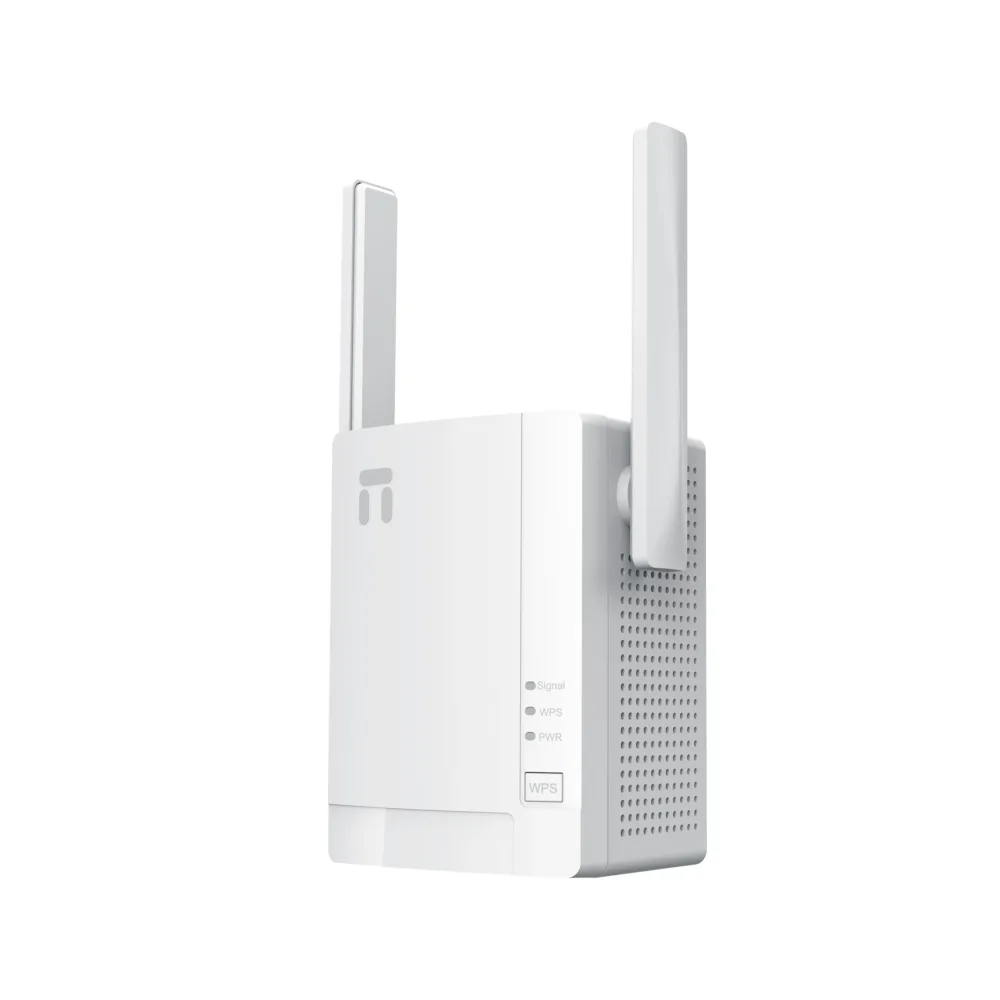
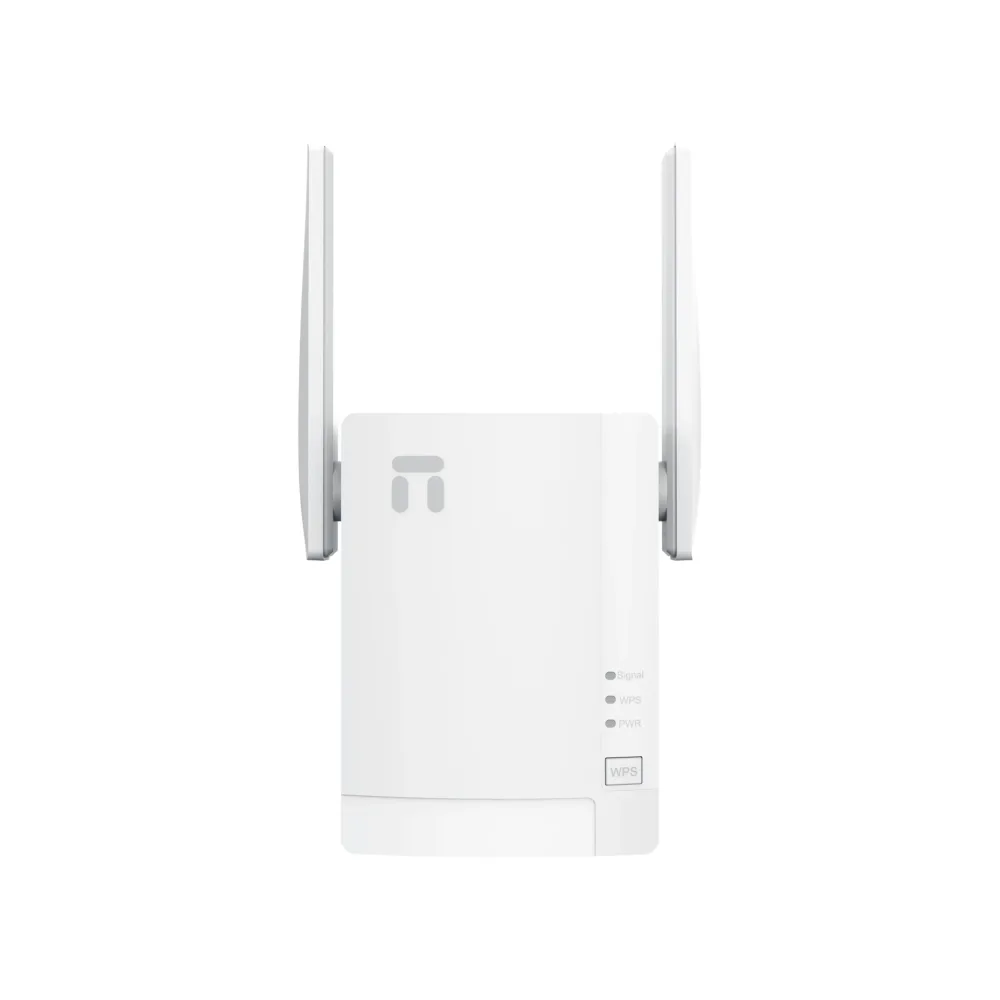
Netis E0 N300 Wi-Fi Range Extender | Avaialable At WaveTech
KSh 1,500.00
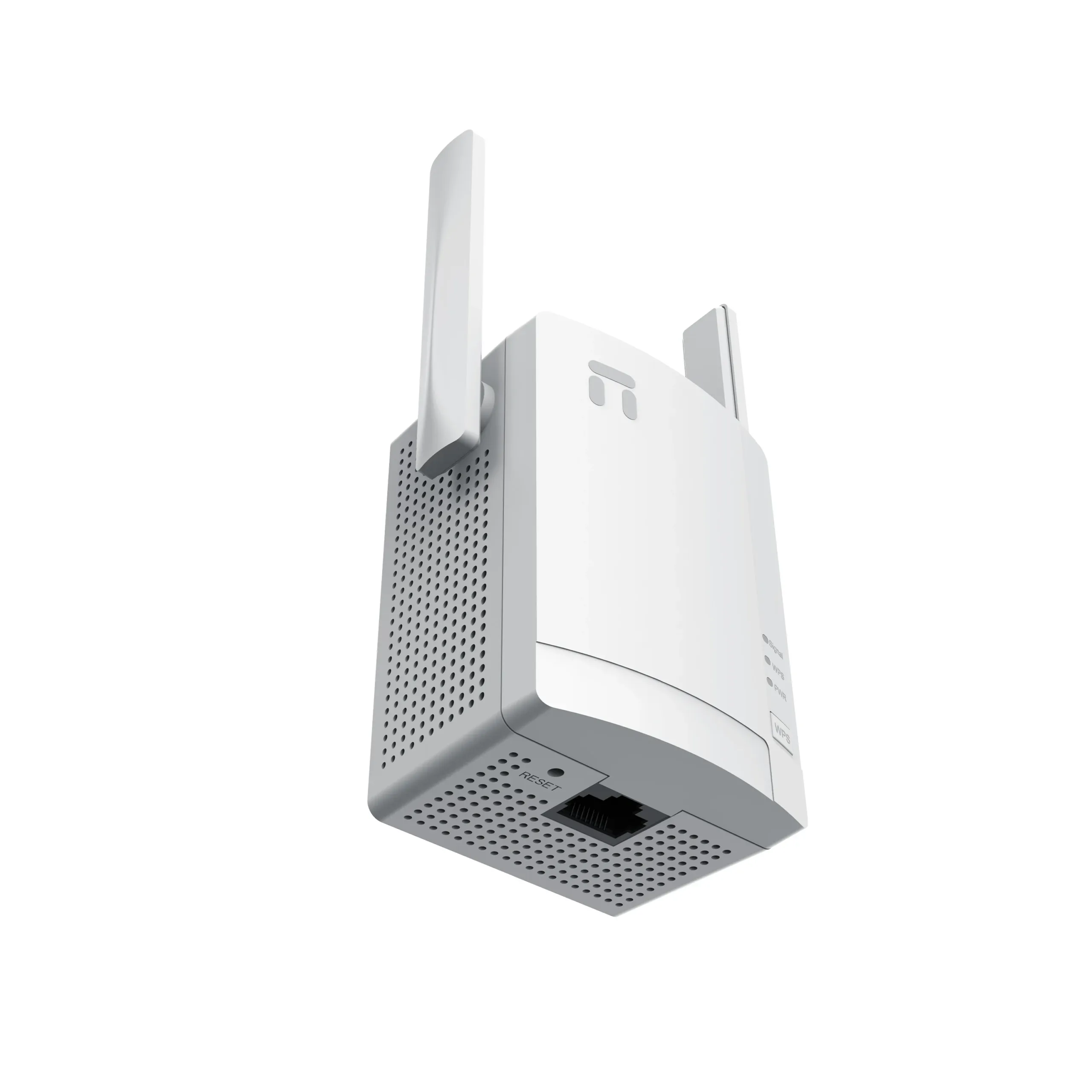
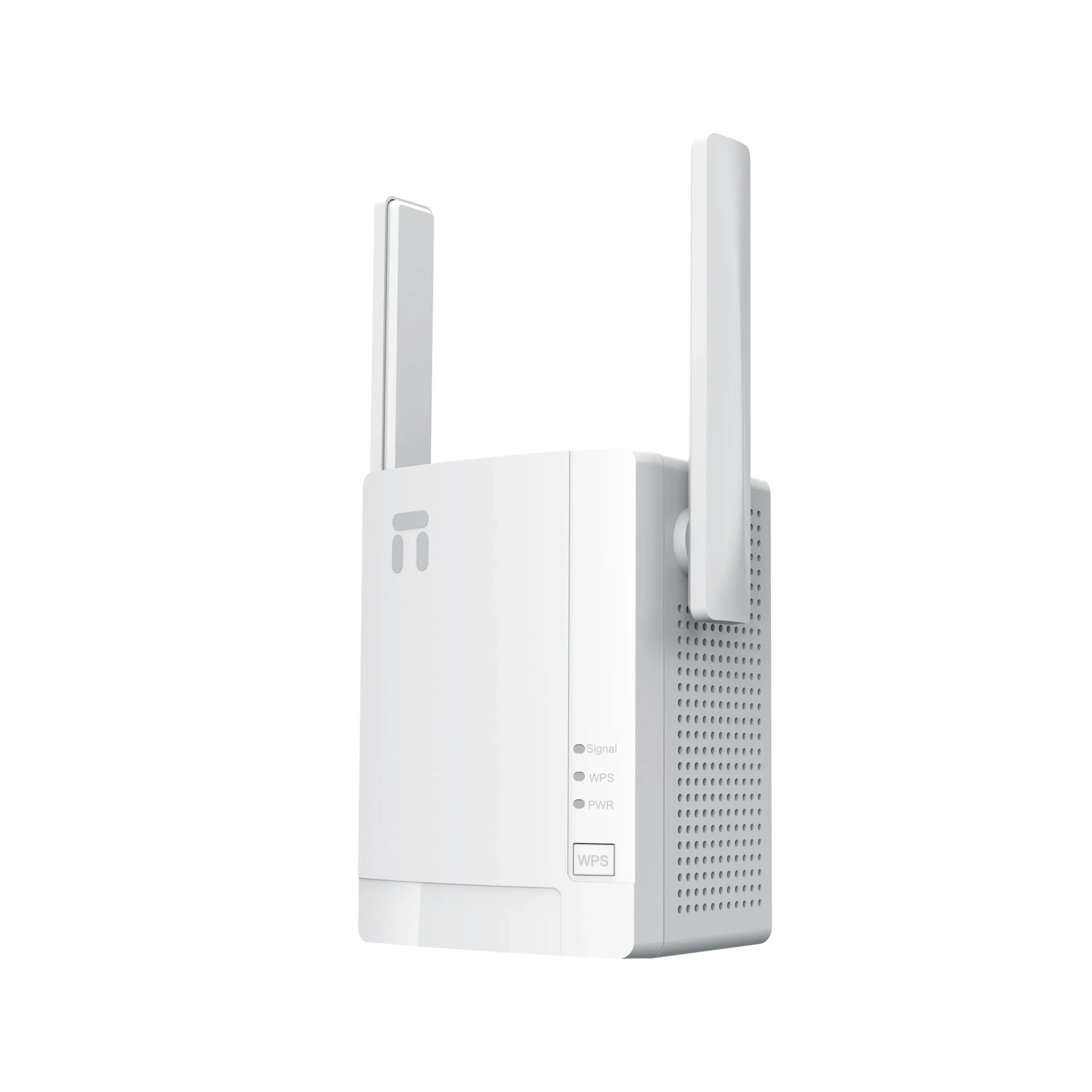
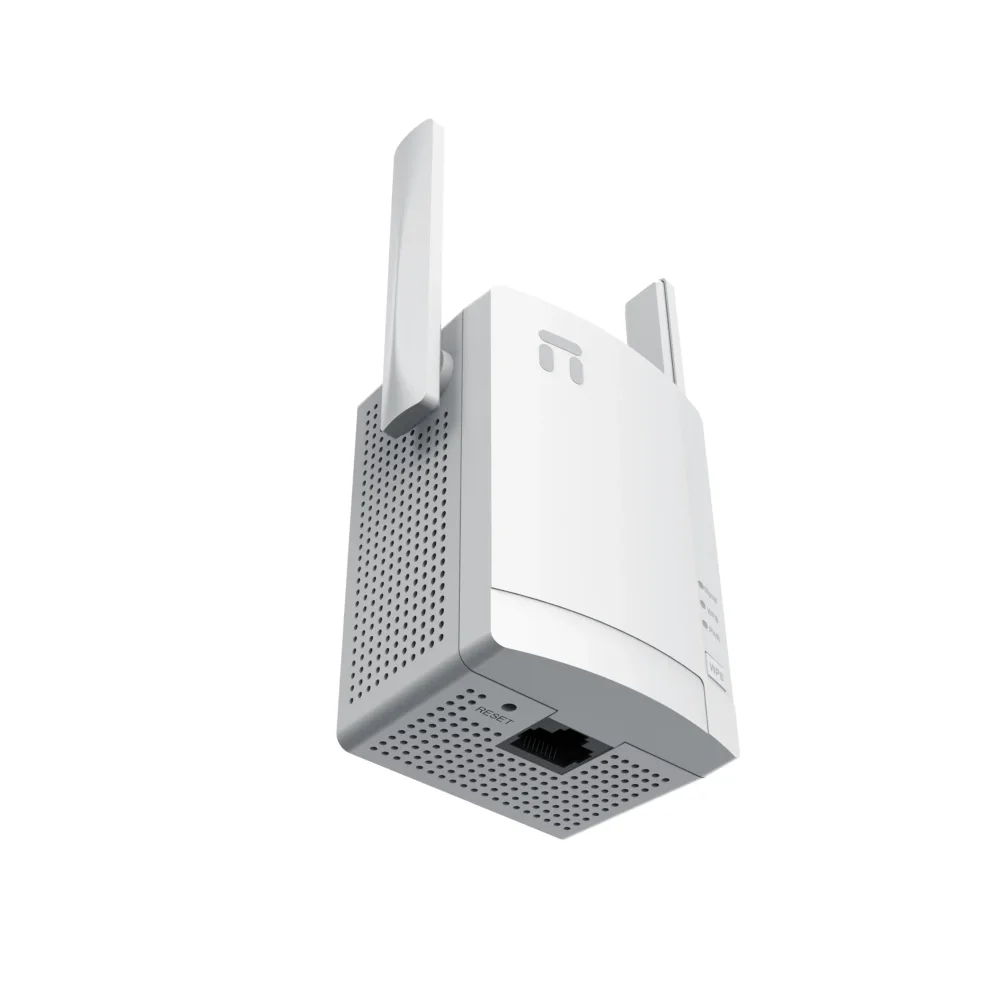
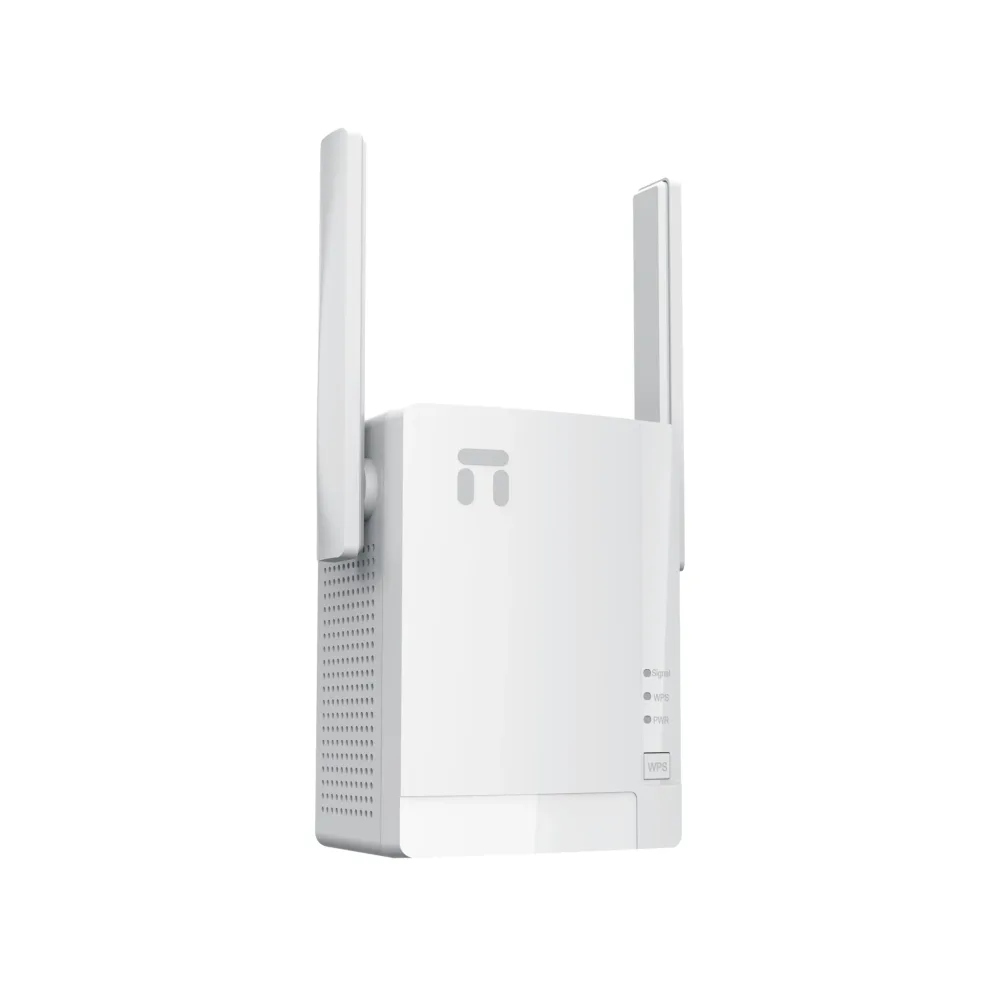
Netis E0 N300 Wi-Fi Range Extender
- High Performance: Speeds up to 300 Mbps with 2 × 3dBi high-gain external antennas.
- Flexible Operating Modes: Effortlessly switches between Range Extender, Access Point (AP), and WISP modes.
- Advanced Wireless Security: Robust data protection with support for modern WPA3 encryption.
- Smart Signal LED: Built-in color-coded indicator guides you to the perfect installation spot.
- Easy One-Touch Setup: Instantly pair with your main router using the physical WPS button.
Need expert installation or bulk supply in Kenya? Visit us at wavetech.co.ke or call our technical team directly at 0111054080 for immediate support!
Netis E0 N300 Wi-Fi Range Extender Review: The Ultimate Budget Solution for Wi-Fi Dead Zones
In a modern home or small office environment, experiencing patchy internet coverage, dropped video calls, or slow loading speeds due to physical architectural layout is a common bottleneck. While expensive enterprise mesh systems are an option, most residential properties and small businesses require a practical, cost-effective tool to extend coverage.
The Netis E0 N300 Wi-Fi Range Extender is engineered specifically to resolve these localized connectivity limits without the burden of complex infrastructure costs. This review breaks down its hardware capabilities, multi-mode operation, and how to deploy it within your space.
Technical Specifications: At a Glance
The Netis E0 balances minimalist physical form factor with efficient Wi-Fi 4 standards:
| Feature | Technical Specification |
|---|---|
| Wireless Standard | Wi-Fi 4 (IEEE 802.11b/g/n) |
| Frequency Range | 2.4 GHz – 2.4835 GHz |
| Maximum Wireless Speed | Up to 300 Mbps |
| Antenna Configuration | 2 × 3dBi Fixed High-Gain External Antennas |
| Physical Interface | 1 × 10/100 Mbps Auto MDI/MDIX RJ45 LAN/WAN Port |
| Security Encryption | WPA-PSK, WPA2-PSK, WPA3, WPA3/WPA2-PSK |
| Device Power Input | Direct Wall Plug-in (100–240V ~ 50/60Hz) |
Key Performance Drivers of the Netis E0
1. Advanced 3-in-1 Working Modes
The adaptability of the Netis E0 stems from its three software operating profiles:
- Range Extender Mode: Captures an existing weak signal from your main router and amplifies it to eliminate dead zones.
- Access Point (AP) Mode: Connects to a primary edge switch or router via an Ethernet cable to broadcast a standalone local wireless network.
- WISP Mode (Wireless ISP): Wirelessly pairs with a public hotspot or service provider antenna and redistributes that internet data securely to local private clients.
2. Intelligent Signal LED Guide
Improper placement is the leading cause of poor range extender performance. The Netis E0 features a built-in Smart Signal LED indicator. This reactive light analyzes the RSSI (signal strength) coming from your host router, providing real-time color-coded feedback to guide your placement.
3. Modern Security Architecture
Despite its entry-level target market, the Netis E0 features next-generation network security. It supports WPA3 wireless encryption, protecting data traffic against modern brute-force credential attacks.
Real-World Use Cases: Where It Excels
- Residential Homes: Ideal for carrying signals across thick concrete walls, into bedrooms, or out onto balconies.
- Commercial Settings: Extends coverage across partitioned office sections or retail stalls without altering pre-existing wiring structures.
- CCTV & IoT Integration: Provides a dedicated, cost-efficient 2.4GHz connection point for security smart cameras or smart doorbells sitting far away from the core gateway.
Operational Boundaries to Keep in Mind
Because it focuses exclusively on the 2.4 GHz spectrum, it does not utilize the 5 GHz band. It caps out at a raw speed performance of 300 Mbps. For premium gigabit fiber links or low-latency high-speed environments, network engineers can look to higher tier models, such as the Netis E3 AC1200 Dual-Band Extender or advanced outdoor configurations like the Netis OAP300.
Deployment & Setup Methods
Configuring the Netis E0 takes under two minutes using either of these simple workflows:
Method A: One-Touch WPS Configuration
- Plug the Netis E0 into an electrical socket near your main router.
- Press the physical WPS button on your host internet router.
- Immediately press the WPS button on the side panel of the Netis E0.
- Wait for the Signal LED to illuminate solidly. Move the extender to an outlet roughly halfway between the router and the target dead zone.
Method B: Web Browser Wizard (No WPS Button)
- Plug in the extender and open the Wi-Fi settings on your phone or PC. Connect to the open network named
netis. - Launch a browser and navigate to the default setup portal address:
http://netisext.cc. - Run the Quick Setup wizard, select your main router’s SSID from the list, type its password, and save changes.
Procure Your Networking Hardware with WaveTech
Whether optimizing a residential flat or designing an enterprise network environment, having the right physical equipment makes all the difference.
At WaveTech, we source, deploy, and support advanced routing and switching hardware tailored for high performance across Kenya.
- Browse Our Catalog: Discover optimal network solutions online at wavetech.co.ke.
- Speak to an Expert: Contact our engineering desk at 0111054080 for inventory inquiries, technical questions, or professional network audits.

Related products

Sale 19%

Netis W4 300Mbps Multi-Mode Wireless Router – High-Speed, Versatile Connectivity for Home & Office
Original price was: KSh 1,300.00.KSh 1,050.00Current price is: KSh 1,050.00. Order!Sale 28%

Netis ST3116P | 16-Port Fast Ethernet Switch – Kenya
Original price was: KSh 2,500.00.KSh 1,800.00Current price is: KSh 1,800.00. Order!Sale 20%

EAP912 AC1200 Wireless Gigabit Ceiling Mount Access Point | High-Speed Business WiFi
Original price was: KSh 5,000.00.KSh 4,000.00Current price is: KSh 4,000.00. Order!Sale 22%

Netis P116GH 16 Port POE Fast Ethernet Standard POE Switch
Original price was: KSh 9,000.00.KSh 7,000.00Current price is: KSh 7,000.00. Order!Sale 11%

Netis ST3105GC | 5-Port Gigabit Ethernet Switch – Kenya
Original price was: KSh 1,800.00.KSh 1,600.00Current price is: KSh 1,600.00. Order!Out of stock

Sale 33%

Netis NC21 | AC1200 Wireless Dual Band Router
Original price was: KSh 3,000.00.KSh 2,000.00Current price is: KSh 2,000.00. Order!Sale 22%

Netis ST3124GS 24-Port Gigabit Ethernet Switch – High-Speed LAN Expansion
Original price was: KSh 9,000.00.KSh 7,000.00Current price is: KSh 7,000.00. Order!
Sale 19%

Grandstream GWN7605LR – Long-Range Outdoor Wi-Fi 5 Access Point (2×2 MU-MIMO)
Original price was: KSh 13,500.00.KSh 11,000.00Current price is: KSh 11,000.00. Order!Sale 20%

Netis ST3124GS | 24-Port Gigabit Ethernet Switch
Original price was: KSh 8,500.00.KSh 6,800.00Current price is: KSh 6,800.00. Order!

Sale 40%


